
Docs
StoryLegend Docs
How Writing Studio works, and how to connect Claude, ChatGPT and other AI apps to your projects.
Getting started
- Create an account at studio.storylegend.app. The Free plan needs no card.
- Start a project. A story is organised into acts, chapters and scenes. A new project starts with Act 1, Chapter 1 and one empty scene.
- Write in the Story Editor. Each scene has its own text, title, summary and status, and the outline keeps your acts and chapters in order.
- Build your Codex. Keep characters, locations, items and lore in one place, so you and your AI app can check details against them.
- Plan and review. Plan with your own AI app from the Story Planner (Studio Pro), and on paid plans run Reports on your manuscript.
Using Writing Studio
A quick tour of the new Studio, with tips from the way writers use it. Everything saves as you go: the editor shows Saving and Saved next to your scene.
Your dashboard
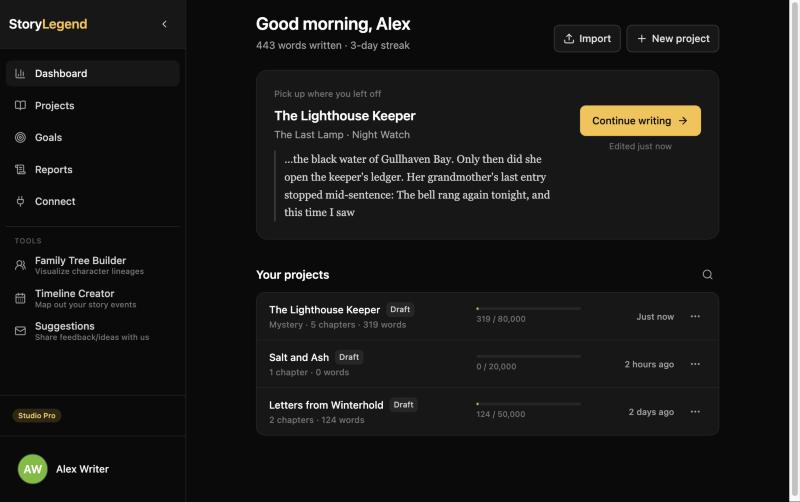
- Continue writing opens the scene you were last working on, with its last lines as a reminder.
- Your projects lists each story with its genre, chapters, word count and progress toward its target.
- New project starts a story. You can pick a structure template, such as Three Act Story, Save the Cat or Hero’s Journey, to get acts and chapters laid out for you.
- Import brings back a project from a JSON backup (see Export and backup).
Writing a scene
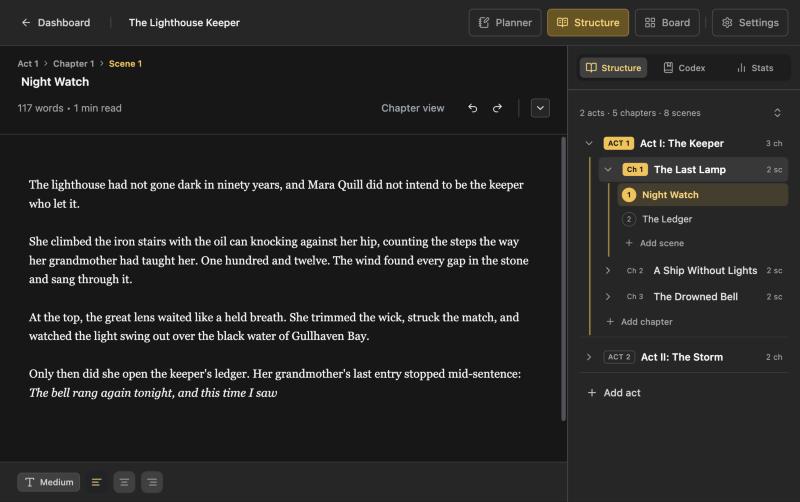
- The path at the top (Act 1 › Chapter 1 › Scene 1) shows where you are. Click the scene title to rename it.
- Under the title you’ll see the scene’s word count and read time.
- Chapter view shows the whole chapter at once, with its scene count, words and read time, so you can read it the way a reader will.
- The buttons at the bottom change the text size and alignment. Undo and redo are next to Chapter view.
- The buttons in the top bar open the Planner, the Structure sidebar, the Board and Settings. Click the project title to edit its details or export it.
Acts, chapters and scenes
The Structure tab lists your acts, chapters and scenes. Use Add act, Add chapter and Add scene to grow the outline, and drag items to reorder them.
- Give every scene a short summary. It keeps the outline readable, and it’s what Reports, exports and AI apps use to understand the story.
- Mark chapters Draft, Review or Complete to see at a glance what’s left to do.
Storyboard
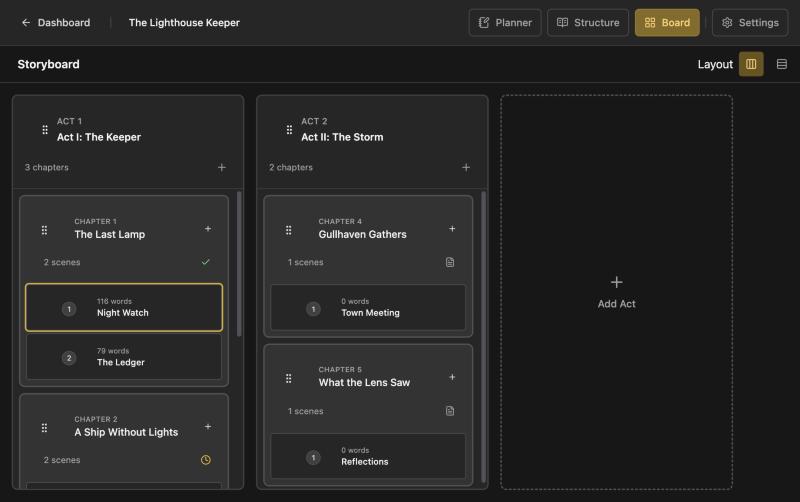
Open Board to see every act, chapter and scene as cards, with word counts and chapter status. Drag cards to move scenes and chapters around, and use Layout to show acts as columns or as rows. It’s the quickest way to spot a chapter that’s too thin or a scene in the wrong place.
Codex
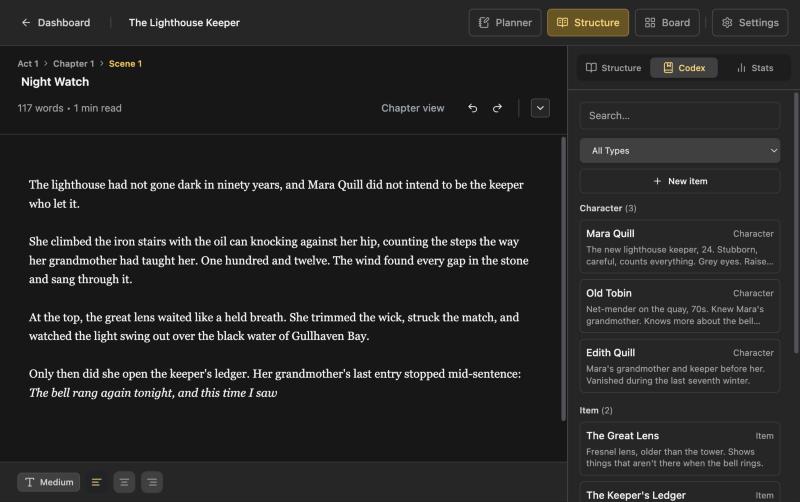
The Codex tab holds your characters, locations and items. Search it, filter by type, and add entries with New item.
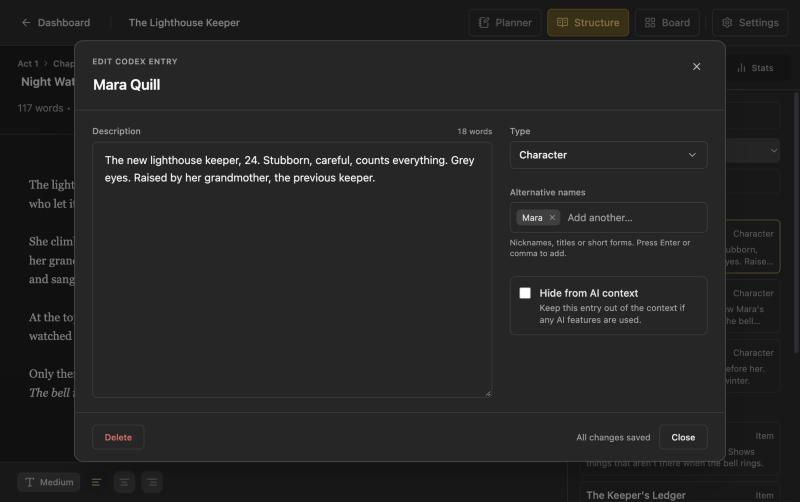
- Add alternative names (nicknames, titles, short forms) so a character is recognised however you refer to them.
- Write descriptions as facts you’ll want to check later: eye colour, ages, distances, who knows what. That’s what makes continuity checks useful.
- Hide from AI context keeps an entry, such as an unrevealed twist, away from any AI app you connect.
- On the Free plan a project can have up to 20 entries, using the built-in types. Studio Lite and Studio Pro have no limit.
Story Planner
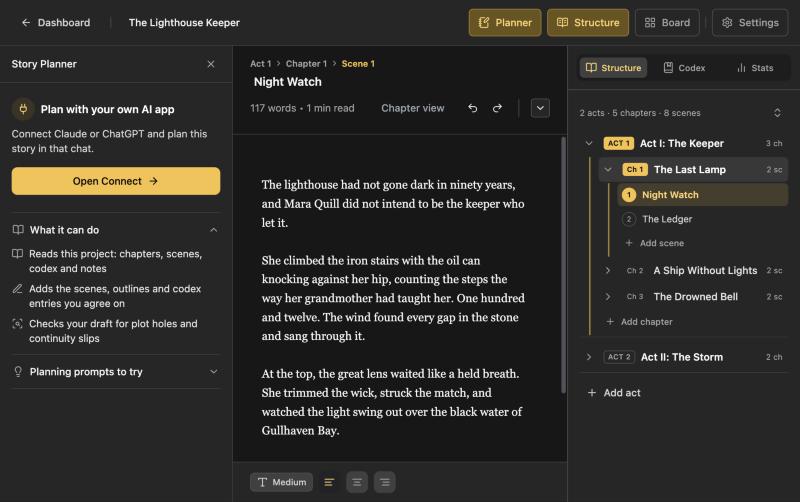
In the new Studio, planning happens with the AI app you already use, through Connect (Studio Pro). Open the Planner to see what a connected app can do with this project and a few planning prompts to try, then choose Open Connect to set it up.
Stats and goals
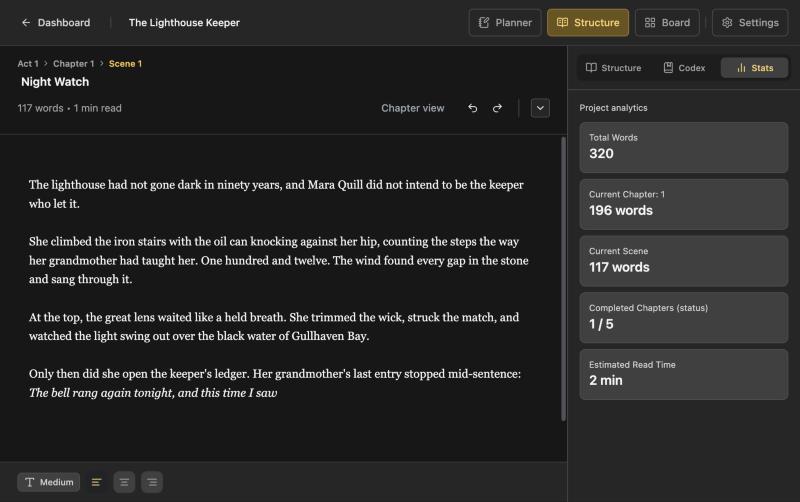
The Stats tab shows total words, the current chapter and scene, how many chapters are complete and the estimated read time. Set a target word count for each project on the Goals page, and the dashboard tracks your progress toward it.
Reports
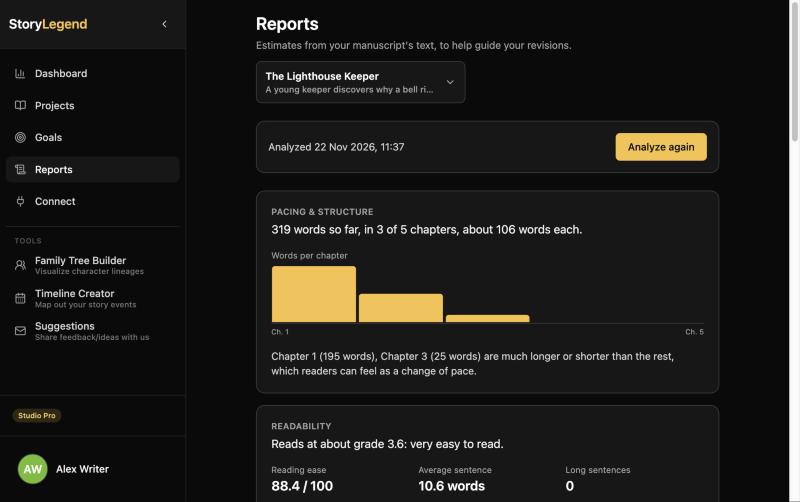
- Open Reports, pick a project and choose Analyze my manuscript. Long books take a little while; you can leave the page and you’ll be told when it’s ready.
- Studio Lite includes Pacing & structure and Readability. Studio Pro adds adverbs and weak words, passive voice, tense, dialogue, repeated words and phrases, and character presence.
- Run it again after a round of edits to see what changed. If the text hasn’t changed, you get the last report straight away.
- Reports you’ve already run stay readable if you move to the Free plan.
Export and backup
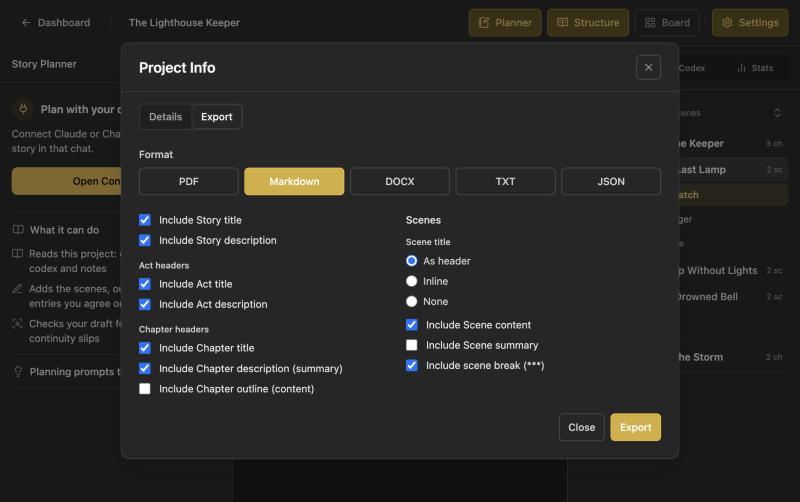
- Export as PDF, Markdown, DOCX (Word) or TXT, and choose which titles, descriptions, summaries and scene breaks to include.
- JSON is a full backup of the project. Keep a copy now and then, and bring it back any time with Import on the dashboard.
- Tip: export with scene summaries on and scene content off for a one-page synopsis of your outline.
AI connector (MCP)
The StoryLegend connector lets the AI app you already use (Claude, ChatGPT and others) read your projects and add to them when you ask. It uses the Model Context Protocol (MCP), an open standard for connecting AI apps to outside tools. StoryLegend runs no AI model of its own: the writing help comes from your AI app.
Which plans include it is on the pricing page. For a visual walkthrough, see Connect your AI app.
Connect an AI app
Every AI app uses the same connector address:
- Claude: open Customize → Connectors, add a custom connector named StoryLegend with the address above, then choose Connect.
- ChatGPT: add a custom MCP server named StoryLegend with OAuth and the address above. OpenAI’s guide shows where to find it and which ChatGPT plans support it.
- Other apps (Gemini, Cursor and any app that supports remote MCP servers with sign-in): add a remote MCP server with the address above.
Your AI app then opens StoryLegend's sign-in. Sign in with your StoryLegend account and choose Connect. Connected apps are listed in Studio under AI apps.
Example requests
Ask in your own words. Mentioning StoryLegend helps your AI app pick the connector. A few things writers ask:
- Outline
“List my StoryLegend projects and summarise each chapter of the latest one in a line.”
- Continuity
“Check chapter 3 of my StoryLegend project against my codex for continuity slips.”
- Drafting
“Add a scene to chapter 2 of my StoryLegend project where the storm reaches the village.”
- Codex
“Read my StoryLegend manuscript and add any characters missing from my codex.”
- Revision
“Find the scenes in my StoryLegend project that run longest and suggest where to trim.”
- Organise
“Move the flashback scene in my StoryLegend project to the start of chapter 4 and mark chapter 3 for review.”
The connector tells your AI app to change your project only when you ask, and a rewritten scene keeps its earlier text as a version, so you can put it back.
What it can do
Your AI app chooses these tools for you as you chat. Read tools never change anything, Add tools create something new, and Change tools edit what's there. There are no delete tools.
Your account and projects
get_accountReadYour plan and whether AI apps can use your projects. Never counts toward your limits.
list_projectsReadYour projects, most recently changed first.
get_project_outlineReadActs, chapters and scenes with titles, summaries and word counts (no scene text).
create_projectAddStarts a new project with Act 1, Chapter 1 and one empty scene, only when you ask for one.
update_project_detailsChangeChanges a project's title, description, genre, notes, word goal or status.
Manuscript
get_sceneReadOne scene as Markdown, with its title, summary and chapter.
get_chapterReadA whole chapter in order. Very long chapters return the first scenes only.
search_manuscriptReadFinds scenes containing a word or phrase, with a short excerpt for each.
create_chapterAddAdds a chapter, with one empty scene, at the end of an act.
create_sceneAddAdds a scene at the end of a chapter, with or without text.
write_sceneChangeReplaces a scene's text or adds to its end. The earlier text is saved as a version first.
update_scene_detailsChangeChanges a scene's title, summary or status, or moves it within the project.
update_chapter_detailsChangeChanges a chapter's title, summary or status, or moves it to another act.
update_act_detailsChangeChanges an act's title, summary or place in the project.
list_scene_versionsReadEarlier versions of a scene saved before an AI app changed it.
restore_scene_versionChangePuts an earlier version back. The current text is saved as a version first.
Codex and planning
list_codex_entriesReadCharacters, locations, items, lore and your own types. Private entries are left out.
get_codex_entryReadOne codex entry with its description and other names.
create_codex_entryAddAdds a character, location, item, lore or other entry.
update_codex_entryChangeChanges an entry's name, description or other names.
list_notesReadYour Story Planner notes, pinned first.
create_noteAddAdds a note to the Story Planner.
update_noteChangeChanges a note's title or text.
The connector also offers each project's outline and codex as resources your AI app can attach, and three ready-made prompts: Continue this scene in my style, Check a chapter against the codex and Fill in missing summaries.
Usage limits
Each tool call counts as one request; changes count toward both columns. A question to your AI app usually takes a few requests. See what you've used in Studio under AI apps → Usage.
| Requests | Of which changes | |
|---|---|---|
| Per minute | 120 | 60 |
| Per day (resets 00:00 UTC) | 3,000 | 1,000 |
| Per week (resets Monday 00:00 UTC) | 7,500 | 2,500 |
Each write can send up to 60,000 characters of scene text, and a search returns up to 50 scenes.
Safety and privacy
- Each AI app signs in with your StoryLegend account and only sees your own projects.
- Before a scene is rewritten, the earlier text is saved as a version. Restore it in Studio, or ask your AI app to.
- Codex entries you mark as hidden from AI are never shown to AI apps.
- To disconnect an app, open Studio → AI apps → Connected apps and choose Disconnect. Its access ends straight away.
- The AI app you connect reads only what it needs for your request, and its own privacy terms apply to that. See our Privacy Policy.
Troubleshooting
- Your StoryLegend sign-in has expired. Reconnect the app.
- Open your AI app’s connector settings, disconnect StoryLegend and connect it again.
- No StoryLegend account was found for this sign-in.
- Sign in with the email address you use for StoryLegend.
- Using StoryLegend from an AI app isn’t included in this writer’s current plan.
- The account you signed in with isn’t on a plan that includes the connector. Change plan in Studio under Account settings → Billing.
- Too many requests in a minute. / Today’s limit … / This week’s limit …
- A usage limit was reached. Wait for the time shown, or check Studio → AI apps → Usage.
- That request is too large for StoryLegend.
- Ask your AI app to send the text in smaller parts, for example one scene at a time.
- Can’t find where to add StoryLegend in ChatGPT.
- ChatGPT’s menus change from time to time. Follow OpenAI’s guide, which also says which ChatGPT plans can add one.
Account and billing
- What each plan includes, and its price, is on the pricing page.
- Change your plan in Studio under Account settings → Billing.
- Use Manage billing on the same page to update your card, see invoices or cancel.
- Refunds follow our refund policy.
Classic Studio
Classic Studio is the original StoryLegend editor and has been retired. Accounts created before the new Studio can keep using it or move to the new Studio from the dashboard.
Help
Can't find what you need? Email support@storylegend.app.
Open StoryLegend Studio